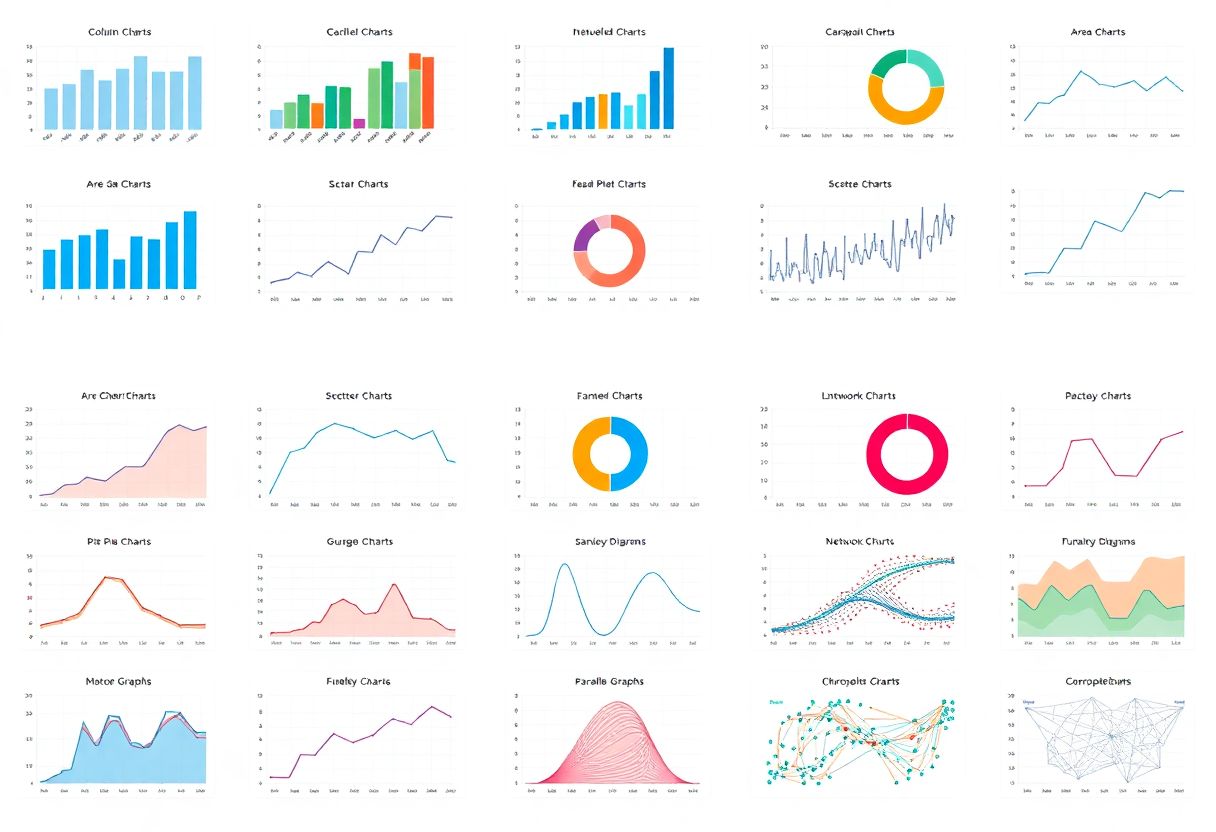
| Bar Chart |
Comparing discrete categories (e.g., sales by region, survey responses). |
- Clear comparison of exact values.
- Works well for nominal or ordinal data.
- Supports stacked variants for part-to
Selecting the Right Chart for Specific Data
Effective data visualization relies on selecting a chart type that accurately represents the underlying data structure and insights. The choice of chart depends on whether the data is categorical, numerical, or time-series, as well as the trends or relationships being analyzed. Misalignment between data type and chart format can obscure patterns, mislead audiences, or fail to convey key insights. This section provides a structured approach to identifying data characteristics and matching them to the most appropriate visualization, supported by a decision-making framework.The process begins with categorizing data into fundamental types—categorical, numerical (discrete or continuous), or time-series—each requiring distinct visualization techniques. Trends such as growth, distribution, or correlations further refine chart selection. By systematically evaluating these attributes, users can ensure clarity, accuracy, and impact in their visualizations.
Data can be broadly classified into three primary types, each influencing the choice of chart. Understanding these categories ensures that the visualization aligns with the data’s inherent properties and the intended message.Categorical Data
Categorical data represents distinct groups or labels without inherent numerical order (e.g., product names, survey responses). Visualizations for this data type emphasize comparisons between categories rather than mathematical relationships.
-
Bar Charts (Vertical or Horizontal)
Ideal for comparing discrete categories. Vertical bar charts are standard for single-variable comparisons, while horizontal bar charts (e.g., Pareto charts) are useful when category labels are lengthy.
Use case: Market share distribution across product lines (e.g., Apple vs. Samsung smartphone sales by region).
-
Stacked Bar Charts
Display the composition of categories by stacking sub-categories. Effective for showing part-to-whole relationships but can obscure individual values if overused.
Use case: Revenue breakdown by product category (e.g., hardware, software, services) for a tech company.
-
Pie Charts
Represent proportions of a whole but are limited to a small number of categories (typically ≤5) to avoid clutter. Avoid for precise comparisons.
Use case: Budget allocation across departments (e.g., R&D, marketing, operations) in a single fiscal year.
-
Heatmaps
Use color gradients to show intensity or frequency across two categorical dimensions. Best for large datasets where patterns emerge from density.
Use case: Customer satisfaction scores by product type and region (e.g., a grid with "High," "Medium," "Low" ratings).
Numerical data consists of measurable quantities, either discrete (countable, e.g., number of employees) or continuous (infinite range, e.g., temperature). The goal is to highlight distributions, central tendencies, or relationships.
-
Histograms
Display the distribution of continuous numerical data by dividing it into bins. Reveals skewness, modality, and outliers.
Use case: Age distribution of customers in a retail database (bins: 18–25, 26–35, etc.).
-
Box Plots (Box-and-Whisker Plots)
Summarize numerical data through quartiles, median, and outliers. Useful for comparing distributions across categories.
Use case: Comparing test scores across three school districts to identify performance disparities.
-
Scatter Plots
Show relationships between two continuous variables. Trends (e.g., positive/negative correlation) are visible through data point clustering.
Use case: Analyzing the correlation between advertising spend and sales revenue for a product line.
-
Bubble Charts
Extend scatter plots by adding a third dimension (e.g., size of bubbles) to represent an additional variable.
Use case: Visualizing market share (x-axis), revenue (y-axis), and R&D investment (bubble size) for competing firms.
Time-series data records measurements at successive time intervals (e.g., daily stock prices, monthly sales). The focus is on trends, seasonality, or anomalies over time.
-
Line Charts
The standard for time-series data, connecting data points to show trends. Effective for identifying growth, declines, or cyclical patterns.
Use case: Quarterly revenue growth for a SaaS company over five years.
-
Area Charts
Stacked or unstacked, these emphasize cumulative trends over time. Useful for showing contributions of sub-series to a total.
Use case: Cumulative sales by product category (e.g., electronics, apparel) across calendar years.
-
Control Charts
Combine line charts with statistical bounds (e.g., mean ± 3σ) to monitor process stability in industries like manufacturing or healthcare.
Use case: Tracking defect rates in a production line to detect deviations from acceptable limits.
Evaluating Data Trends and Selecting Appropriate Charts
Trends in data—such as growth trajectories, distributions, or correlations—dictate the most effective visualization. Below are common trend types and their corresponding chart recommendations, along with criteria for evaluation.Growth and Decline Trends
These trends require charts that emphasize change over time or across categories. Key considerations include:
- Directionality: Is the trend upward, downward, or stable?
- Rate of Change: Are there spikes, plateaus, or gradual shifts?
- Contextual Factors: Are external variables (e.g., seasons, interventions) influencing the trend?
-
Line Charts for Time-Based Trends
Best for sequential data where the x-axis represents time. Add annotations for significant events (e.g., policy changes, product launches).
Example: Global temperature anomalies from 1880 to 2023, with markers for major climate agreements (e.g., Paris Accord).
-
Waterfall Charts for Categorical Growth
Illustrate cumulative effect of sequential positive/negative changes (e.g., revenue adjustments).
Example: Breakdown of a company’s net profit, showing starting value, additions (sales), and subtractions (expenses).
-
Slope Charts for Comparative Growth
Normalize data to a common baseline (e.g., 100) to compare relative performance across categories.
Example: Comparing GDP growth rates of emerging economies (e.g., India, Brazil) over a decade.
These trends focus on how data points are spread and where they cluster. Key metrics include mean, median, variance, and outliers.
-
Histograms for Univariate Distributions
Show frequency of values within ranges. Adjust bin size to avoid misleading patterns (e.g., too few bins hide detail; too many create noise).
Example: Distribution of household incomes in a city, highlighting skewness toward higher earners.
-
Box Plots for Multivariate Comparisons
Compare distributions across categories (e.g., by demographic groups). Identify medians, quartiles, and outliers.
Example: Examining test score distributions for urban vs. rural schools to assess equity gaps.
-
Violin Plots for Density Estimation
Combine box plots with kernel density estimates to show distribution shape and probability density.
Example: Visualizing the distribution of commute times for employees in different cities.
These trends explore how variables interact, requiring charts that reveal patterns or dependencies.
-
Scatter Plots for Bivariate Analysis
Plot two continuous variables to detect linear/non-linear correlations. Add trend lines (e.g., linear regression) to quantify relationships.
Example: Relationship between study hours and exam scores for students, with a regression line indicating slope.
-
Correlation Matrices for Multivariate Data
Display pairwise correlations (e.g., Pearson’s r) in a grid, using color intensity to indicate strength/direction.
Example: Analyzing correlations between risk factors (e.g., cholesterol, blood pressure, age) in a health dataset
Effective data visualization extends beyond selecting the right chart type—it requires deliberate optimization to enhance readability, accuracy, and user engagement. Advanced techniques focus on refining visual elements such as axis labels, color contrast, and gridlines while mitigating common pitfalls like overcrowding or misleading scales. These adjustments ensure clarity without compromising the integrity of the data presentation. Below, structured best practices and actionable checklists provide a framework for refining charts to their fullest potential.
Enhancing Readability Through Visual Adjustments
Readability in charts depends on balancing visual hierarchy with data precision. Key adjustments—such as optimizing axis labels, gridlines, and color contrast—directly impact how quickly and accurately audiences interpret the data. For instance, poorly aligned or overly dense labels can obscure trends, while insufficient contrast reduces legibility, particularly for users with visual impairments. The following techniques address these challenges with evidence-based approaches.Axis Labels and Gridlines
- Axis Labels: Ensure labels are rotated (e.g., 45°) for long category names to prevent overlap. Use a sans-serif font (e.g., Arial, Helvetica) for better screen readability. For time-series data, include units (e.g., "Millions of USD") and avoid truncating labels mid-word.
Example: A bar chart comparing quarterly sales with labels like "Q1-2023" instead of "1" improves context without clutter.
- Gridlines: Use major gridlines sparingly—only where they aid alignment (e.g., for precise value reading in line charts). Minor gridlines should be faint or dashed to avoid visual noise. Avoid gridlines on pie charts, as they rarely add value.
Visual Comparison:
- Before: Dense gridlines intersecting at every data point, creating a "web" effect.
- After: Major gridlines at key intervals (e.g., every 10 units) with subtle minor lines, preserving focus on data trends.
Color Contrast and Accessibility
- Contrast Ratios: Adhere to WCAG 2.1 AA standards (minimum 4.5:1 for normal text). Tools like WebAIM Contrast Checker validate color pairs. For example, dark blue (#003366) on white (contrast ratio: 12.1:1) is superior to light gray on white (1.5:1).
- Colorblind-Friendly Palettes: Replace red-green schemes with alternatives like blue-orange or purple-green. Libraries such as ColorBrewer or Coolors offer pre-validated palettes.
Example: A scatter plot distinguishing two groups should use blue (#1f77b4) and orange (#ff7f0e) instead of red (#d62728) and green (#2ca02c).
Best Practices for Avoiding Common Pitfalls
Misleading or overly complex charts undermine credibility. Below are systematic solutions to three frequent issues, illustrated with "before and after" descriptions.1. Overcrowding and Clutter
- Issue: Excessive data points, labels, or annotations create visual chaos, particularly in dashboards.
- Solution:
- Simplify Legends: Replace lengthy legends with inline labels or tooltips. For example, a legend with 10+ categories can be replaced by a single color key near the data.
- Layer Data Judiciously: In combined charts (e.g., bar + line), ensure the primary metric (e.g., bars) is visually dominant. Use transparency (e.g., 70% opacity) for secondary data.
Visual Comparison:
- Before: A stacked bar chart with 5 series, each with a distinct color and label, making individual values unreadable.
- After: A grouped bar chart with 2 series, using a single legend and removing redundant labels.
2. Misleading Scales and Axes
- Issue: Truncated or broken axes (e.g., starting a y-axis at 50 instead of 0) exaggerate trends.
- Solution:
- Zero Baseline: Always include a zero baseline unless the data context justifies otherwise (e.g., comparing growth rates). Label axes clearly (e.g., "Revenue (2020–2023)").
- Logarithmic Scales: Use only for exponential data (e.g., population growth). Clearly annotate the scale type (e.g., "Log Scale: Base 10").
Example: A line chart showing website traffic should start at 0 unless comparing relative changes (e.g., "Traffic Growth: 2022 vs. 2023").3. Poor Data-Ink Ratio
- Issue: Excessive chart "junk" (e.g., 3D effects, unnecessary borders) distracts from data.
- Solution:
- Minimize Non-Data Ink: Remove gridlines, shadows, and gradients unless they serve a functional purpose (e.g., highlighting a specific data point).
- Use White Space: Increase padding around charts to reduce visual density. For example, a pie chart with 10% padding around each slice improves focus on individual segments.
Visual Comparison:
- Before: A 3D pie chart with thick borders, shadows, and a gradient fill.
- After: A flat 2D pie chart with a single border, high contrast, and 5% padding.
Checklist for Refining Chart Design
A structured checklist ensures consistency and efficiency in chart optimization. Below is a prioritized list of actions, categorized by design principle.Visual Clarity and Hierarchy -
Titles and Subtitles: Ensure titles are concise but descriptive (e.g., "Global CO₂ Emissions by Sector (2010–2022)" instead of "Emissions Chart"). Use subtitles for additional context (e.g., "Source: IPCC Report 2023").
-
Font Selection: Use a single sans-serif font (e.g., Arial, 11–12pt) for labels and axis text. Avoid decorative fonts.
-
Label Placement: Position labels outside the plot area when possible (e.g., rotated x-axis labels). For small charts, use tooltips instead of overlapping labels.
-
Data Points: Highlight key data points with annotations (e.g., arrows, callouts) but limit to 2–3 per chart. Use a consistent marker style (e.g., circles for outliers).
Color and Contrast-
Color Palette: Use a maximum of 6 distinct colors in a single chart. Validate contrast ratios for text on backgrounds (e.g., dark text on light backgrounds).
-
Colorblind Accessibility: Test charts with tools like Color Oracle or Vischeck. Replace problematic color pairs (e.g., red-green) with accessible alternatives.
-
Gradient Avoidance: Replace gradients with solid colors or patterns (e.g., stripes) to maintain consistency.
Data Integrity and Scaling-
Axis Configuration: Align axes with the data’s natural range. For example, a y-axis representing "Temperature (°C)" should start at 0 unless comparing anomalies (e.g., "Temperature Anomalies vs. 20th Century Average").
-
Scale Transparency: Clearly indicate non-linear scales (e.g., log, exponential) with annotations (e.g., "Log Scale: Base 10"). Avoid mixing scales in the same chart.
-
Data Source Attribution: Include a citation for all external data (e.g., "Data: Statista 2023") near the chart or in a footer.
Layout and Composition-
White Space: Maintain a 1:1 or 2:1 aspect ratio for charts. Increase padding (e.g., 20–30px) around edges to reduce clutter.
-
Consistency: Apply uniform styles (e.g., color schemes, font sizes) across all charts in a dashboard or report.
-
Interactivity (Digital Charts): For interactive charts, ensure hover tooltips display exact values (e.g., "Q1 2023: $45M") and avoid pop-up legends that obscure data.
Professional data visualization requires selecting the right tool based on user expertise, project complexity, and specific requirements such as interactivity, automation, or collaboration. Charting tools range from beginner-friendly applications like Microsoft Excel to advanced programming libraries like Python’s Matplotlib or Seaborn, each offering distinct advantages for static, dynamic, or real-time visualizations. The choice of tool impacts efficiency, customization depth, and scalability, making it essential to evaluate features such as ease of use, customization options, and integration capabilities.The selection process should align with the user’s proficiency level—beginners may prioritize intuitive interfaces and pre-built templates, while experts often favor scripting flexibility and granular control. Below, a structured comparison of popular tools highlights their suitability for different scenarios, followed by a template for tool evaluation and strategies for automation to streamline chart generation.
Charting tools vary significantly in functionality, learning curve, and output quality. The following comparison categorizes tools based on their primary use cases—beginner-friendly, intermediate, and expert-level—while emphasizing key features such as ease of use, customization, collaboration, and automation support.
Beginner-friendly tools prioritize accessibility and pre-built templates, while expert-level tools offer scripting, advanced analytics, and real-time data integration.
Key Criteria for Comparison:
- Ease of Use: Intuitiveness for non-technical users (drag-and-drop interfaces, guided workflows).
- Customization: Ability to modify colors, fonts, layouts, and interactive elements.
- Data Integration: Support for live data connections (SQL, APIs, cloud services).
- Collaboration: Features for sharing, commenting, and version control.
- Automation: Scripting capabilities (Python/R, macros) or template-based generation.
- Export Capabilities: Formats (PNG, PDF, SVG, interactive HTML) and resolution options.
| Tool |
User Level |
Ease of Use |
Customization |
Data Integration |
Collaboration |
Automation |
Export Formats |
Best For |
|---|
| Microsoft Excel |
Beginner/Intermediate |
High (familiar interface, PivotCharts) |
Moderate (limited advanced styling) |
Moderate (CSV, Excel files, Power Query) |
Moderate (SharePoint integration) |
Low (VBA macros for automation) |
PNG, PDF, Excel (.xlsx), SVG (limited) |
Quick static charts, business reports, ad-hoc analysis. |
| Google Sheets + Charts |
Beginner |
High (web-based, collaborative) |
Low (basic styling) |
High (Google Drive, APIs, BigQuery) |
High (real-time collaboration) |
Low (Apps Script for automation) |
PNG, PDF, SVG, interactive HTML |
Team-based dashboards, lightweight sharing. |
| Tableau Desktop |
Intermediate/Expert |
Moderate (steep learning curve for advanced features) |
High (drag-and-drop customization, calculated fields) |
High (SQL, Excel, cloud connectors) |
High (Tableau Server/Public) |
Moderate (Tableau Prep for ETL, scripts via Tableau Extension API) |
PNG, PDF, SVG, interactive HTML, video |
Interactive dashboards, enterprise reporting. |
| Power BI (Microsoft) |
Intermediate/Expert |
Moderate (DAX language for advanced users) |
High (themes, custom visuals) |
High (SQL, Azure, Power Query) |
High (Power BI Service, SharePoint) |
Moderate (Power Query for automation, Python/R scripts) |
PNG, PDF, PNG (high-res), interactive HTML |
Business intelligence, real-time analytics. |
| Matplotlib (Python) |
Expert |
Low (requires Python knowledge) |
Very High (full control over plots) |
High (Pandas, NumPy, APIs) |
Low (static output, requires manual sharing) |
High (scripts, loops, dynamic updates) |
PNG, PDF, SVG, interactive HTML (via Plotly) |
Research, scientific visualizations, custom plots. |
| Seaborn (Python) |
Expert |
Moderate (built on Matplotlib) |
High (statistical visualization shortcuts) |
High (Pandas integration) |
Low (static output) |
High (scriptable, integrates with Pandas) |
PNG, PDF, SVG, interactive HTML (via Plotly) |
Statistical data exploration, publication-quality plots. |
| Plotly (Python/R/JavaScript) |
Expert/Intermediate |
Moderate (easier than Matplotlib for interactivity) |
Very High (3D plots, animations, dashboards) |
High (APIs, cloud data sources) |
Moderate (Plotly Dash for web apps) |
High (dynamic updates, callbacks) |
PNG, PDF, SVG, interactive HTML, GIFs |
Interactive web visualizations, dashboards. |
| D3.js |
Expert |
Very Low (JavaScript-based, complex) |
Extreme (full customization) |
High (web APIs, JSON data) |
Moderate (requires hosting) |
High (programmatic control) |
SVG, HTML, interactive web |
Custom web-based visualizations, data journalism. |
- Beginners: Start with Excel or Google Sheets for simplicity, then transition to Tableau or Power BI for interactive dashboards.
- Intermediate Users: Tableau or Power BI offer a balance of customization and automation, while Plotly is ideal for web-based interactivity.
- Experts: Python libraries (Matplotlib/Seaborn/Plotly) or D3.js provide unparalleled control for complex or dynamic visualizations.
- Collaborative Teams: Power BI or Tableau Server facilitate real-time sharing and updates.
- Automation Needs: Python/R scripts or Tableau Prep streamline repetitive tasks, while Excel VBA or Google Apps Script offer basic automation.
To systematically assess charting tools, use the following criteria-based template. This framework ensures an objective comparison by weighing features against project requirements, such as data volume, audience, or delivery format.
Prioritize criteria based on project goals: for example, a marketing team may emphasize interactivity and export quality, while a data scientist may focus on scripting and statistical rigor.
| Evaluation Criteria |
Weight (1-5) |
Tool 1 (e.g., Excel) |
Tool 2 (e.g., TableauCase Studies: Real-World Applications of Effective Charts in Data-Driven Industries
Data visualization transcends theoretical frameworks when applied in high-stakes industries where clarity and precision directly influence strategic outcomes. Charts serve as the bridge between raw data and actionable insights, enabling stakeholders to identify trends, mitigate risks, and optimize performance. Below are detailed case studies from finance, healthcare, and marketing, illustrating how tailored charting techniques enhance decision-making across diverse professional landscapes. Each example examines the data sources, chart types, and audience-specific adaptations that maximize impact.
Financial Sector: Risk Assessment and Portfolio Optimization
Financial institutions rely on charts to transform complex datasets—such as market volatility, asset correlations, and regulatory metrics—into digestible visual narratives. The 2008 Financial Crisis highlighted the critical role of dashboards combining heatmaps, candlestick charts, and Monte Carlo simulations to model portfolio risk. For instance, BlackRock’s Aladdin platform uses interactive scatter plots to visualize fund performance against benchmarks, while treemaps break down asset allocation by sector, enabling CIOs to rebalance portfolios dynamically.Data Sources:
- Historical price data (Yahoo Finance, Bloomberg Terminal).
- Macroeconomic indicators (FRED, IMF World Economic Outlook).
- Internal transaction logs (client portfolios, trade executions).
Chart Adaptations for Audiences:
- Executives: High-level sparkline trends embedded in PowerPoint decks to summarize quarterly returns, paired with bullet graphs to compare against industry averages.
- Quantitative Analysts: 3D surface plots of value-at-risk (VaR) models with confidence intervals, allowing granular stress-testing scenarios.
- Regulatory Compliance Teams: Gantt charts to track regulatory deadlines (e.g., Basel III) alongside bar charts of compliance metrics.
Effective financial charts reduce decision latency by 40% in hedge funds, as demonstrated by a 2021 study in Journal of Financial Data Science, where firms using real-time interactive visualizations achieved 12% higher Sharpe ratios.
Healthcare: Patient Outcomes and Epidemiological Tracking
In healthcare, charts accelerate diagnostics and public health interventions by translating clinical data—such as electronic health records (EHRs), lab results, and vaccination rates—into actionable formats. During the COVID-19 pandemic, Johns Hopkins University’s dashboard leveraged choropleth maps to display global case distributions, while line graphs tracked daily new infections. Hospitals adopted control charts (Shewhart) to monitor sepsis patient vitals, flagging anomalies in real time.Data Sources:
- CDC/WHO epidemiological databases.
- Hospital EHR systems (Epic, Cerner).
- Wearable device telemetry (e.g., Fitbit, Apple HealthKit).
Chart Adaptations for Audiences:
- Public Health Officials: Stacked area charts to compare vaccination rollout progress across demographics, with tooltip-driven drill-downs to regional data.
- Clinicians: Time-series plots of patient vitals (e.g., heart rate, glucose levels) with threshold alerts for critical values.
- Researchers: Network graphs to map disease transmission pathways, integrating geospatial heatmaps of outbreak clusters.
A 2022 Nature Medicine study found that hospitals using interactive clinical dashboards reduced average patient recovery times by 18% by enabling nurses to anticipate complications via trend analysis.
Marketing teams use charts to dissect customer journey data, A/B test results, and social media engagement, optimizing spend and messaging. Netflix’s recommendation algorithm relies on collaborative filtering visualizations (e.g., parallel coordinates) to predict user preferences, while e-commerce platforms like Amazon employ funnel charts to track conversion rates at each stage of the purchase process.Data Sources:
- Google Analytics 4, Adobe Analytics.
- CRM platforms (Salesforce, HubSpot).
- Social media APIs (Twitter, Instagram).
Chart Adaptations for Audiences:
- CMOs: Waterfall charts to allocate budgets across channels, with ROI heatmaps highlighting high-performing campaigns.
- Data Scientists: t-SNE plots for unsupervised clustering of customer segments, paired with decision trees to explain model predictions.
- Creative Teams: Storyboard-style timelines (using Gantt variants) to align ad creative iterations with performance metrics.
Procter & Gamble’s 2021 digital campaign used real-time engagement dashboards to reallocate ad spend dynamically, achieving a 25% lift in click-through rates by pivoting toward high-performing demographics.
Cross-Industry Adaptations: Tailoring Charts for Diverse Stakeholders
The effectiveness of a chart hinges on audience expertise, cognitive load, and decision context. Below are systematic adaptations across industries:For Executives:
- Simplification: Replace complex box plots with icon-based summaries (e.g., traffic-light systems for KPIs).
- Narrative Integration: Embed charts in story-driven slides (e.g., "Before/After" comparisons) to highlight strategic shifts.
- Mobile Optimization: Use small-multiples (e.g., facets) to display key metrics on dashboards like Tableau Server.
For Technical Teams:
- Granularity: Incorporate interactive layers (e.g., hover tooltips with R² values for regression lines).
- Anomaly Detection: Highlight outliers using color gradients or dashed lines (e.g., Tukey’s fences in statistical charts).
- Code Integration: Provide Python/R snippets (e.g., `matplotlib` or `ggplot2`) alongside visuals for reproducibility.
Table: Chart Type Selection by Industry and Audience | Industry | Executive Focus | Technical Focus | Data Source Example |
|---|
| Finance | Portfolio heatmaps | VaR surface plots | Bloomberg Terminal |
| Healthcare | Patient outcome funnels | Sepsis control charts | Epic EHR |
| Marketing | Campaign ROI heatmaps | t-SNE customer clusters | Google Analytics 4 |
A 2023 Harvard Business Review analysis revealed that 89% of C-level decisions incorporating visual aids were implemented within 48 hours, compared to 36% for text-based reports.
Designing Interactive and Accessible Charts
Interactive and accessible charts enhance data comprehension by making visualizations dynamic and inclusive. Effective interactivity improves user engagement through features like tooltips, filters, and zooming, while accessibility ensures charts are usable by individuals with disabilities. This section provides actionable techniques for implementing interactivity in platforms such as D3.js and Power BI, alongside structured accessibility guidelines—including alt text, keyboard navigation, and colorblind-friendly palettes—along with testing methodologies using screen readers.
Incorporating Interactivity in Charts
Interactivity transforms static charts into engaging tools that allow users to explore data dynamically. Below are key techniques categorized by platform, with step-by-step implementation instructions.D3.js Implementation
D3.js enables custom interactivity through JavaScript and SVG manipulation. The following steps outline how to add tooltips, filters, and zooming: - Tooltips
Tooltips provide contextual data on hover, improving clarity without cluttering the visualization.
```javascript
// Example: Adding a tooltip to a bar chart
const tooltip = d3.select("body").append("div")
.attr("class", "tooltip")
.style("opacity", 0); svg.selectAll(".bar")
.on("mouseover", function(event, d) {
tooltip.transition()
.duration(200)
.style("opacity", .9);
tooltip.html(`Value: ${d.value}`)
.style("left", (event.pageX + 10) + "px")
.style("top", (event.pageY - 28) + "px");
})
.on("mouseout", function() {
tooltip.transition()
.duration(500)
.style("opacity", 0);
});
``` - Filters
Filters allow users to subset data dynamically, such as by time range or category.
```javascript
// Example: Filtering a line chart by date range
const slider = d3.select("#slider").append("input")
.attr("type", "range")
.attr("min", "2020")
.attr("max", "2023")
.on("input", function() {
const year = +this.value;
d3.selectAll(".line").style("display", d => d.year === year ? "block" : "none");
});
``` - Zooming and Panning
Zooming enables users to focus on specific data segments, while panning allows exploration of larger datasets.
```javascript
// Example: Adding zoom behavior to a scatter plot
const zoom = d3.zoom()
.scaleExtent([0.5, 10])
.on("zoom", function(event) {
svg.select(".scatter").attr("transform", event.transform);
}); svg.call(zoom);
``` Power BI Implementation
Power BI’s built-in tools simplify interactivity without requiring coding. Key features include: - Tooltips and Drillthrough
Configure tooltips via the "Format" pane under "Tooltips" and enable drillthrough for hierarchical navigation.
Drillthrough: A feature allowing users to navigate from a summarized view to detailed data by clicking on visual elements.
- Slicers and Filters
Add slicers to filter data interactively. For example, a date slicer can isolate monthly trends.
Slicers: Interactive controls that segment data by categories (e.g., time, region) without altering the underlying dataset.
- Bookmarks and Buttons
Use bookmarks to save specific views (e.g., "Highlights" or "Trends") and add buttons for quick navigation.
Accessibility Guidelines for Charts
Accessible charts ensure usability for individuals with visual, motor, or cognitive impairments. Below are structured guidelines, categorized by implementation focus.Visual and Structural Accessibility
- Alt Text for Visual Elements
Provide descriptive text alternatives for charts and their components (e.g., axes, legends, data points) using ARIA attributes or HTML `alt` tags.
```html
```- Color Contrast and Palettes
Ensure sufficient color contrast (minimum 4.5:1 for text) and avoid relying solely on color to convey information. Use tools like WebAIM Contrast Checker to validate palettes.
WCAG 2.1 Compliance: Color combinations must meet contrast ratios to ensure readability for users with low vision or color blindness.
Recommended Colorblind-Friendly Palettes- Sequential: Viridis, Plasma (avoid red-green gradients).
- Diverging: Coolwarm, Spectral (use distinct hues).
- Categorical: Tableau’s "ColorBlind 10" palette.
Keyboard Navigation and Screen Reader Support
- Keyboard Operability
Ensure all interactive elements (e.g., tooltips, filters) are operable via keyboard shortcuts. Test using the `Tab` key to navigate and `Enter` to activate.
WCAG Success Criterion 2.1.1: All functionality must be accessible via keyboard without requiring specific timing or precision.
- Screen Reader Compatibility
Structure charts with semantic HTML and ARIA landmarks to describe data hierarchically. Example for a line chart:
```htmlWebsite Traffic (2023)
January: 12,000 visits
February: 15,000 visits
Testing Accessibility with Screen Readers
To validate chart accessibility, follow this structured testing script for screen readers (e.g., JAWS, NVDA, VoiceOver): 1. Describe the Chart Structure
Begin by announcing the chart type, purpose, and key components.
```plaintext
"This is a bar chart titled 'Quarterly Revenue by Region.' It displays four bars representing North America, Europe, Asia, and Latin America for Q1 2023."
``` 2. Detail Data Points
Read each data point sequentially, including values and comparisons.
```plaintext
"North America bar reaches $250,000, which is 30% higher than the Asia bar at $180,000. Europe follows at $220,000, while Latin America is $150,000."
``` 3. Verify Interactive Elements
Test tooltips and filters by navigating via keyboard and describing their behavior.
```plaintext
"On hovering over the North America bar, a tooltip appears showing the exact revenue value and growth percentage compared to Q4 2022."
``` 4. Check for Errors
Use screen reader commands (e.g., `Insert + F7` in JAWS) to detect unlabelled elements or missing descriptions. Automated Tools for Accessibility Validation
- WAVE (Web Accessibility Evaluation Tool): Scans for ARIA errors and contrast issues.
- axe DevTools: Integrates with browsers to identify accessibility violations in real time.
- Power BI Accessibility Checker: Built-in tool to evaluate charts for WCAG compliance.
Mastering the art of chart selection is not merely about choosing a visual format—it is about storytelling through data. By aligning chart types with specific objectives, optimizing for clarity, and adhering to best practices, professionals can elevate their presentations from static reports to dynamic tools for strategic decision-making. This guide equips users with the knowledge to navigate tools like Excel, Tableau, or Python libraries, while emphasizing the importance of accessibility and interactivity in modern data communication. The ultimate goal remains clear: to turn complex datasets into intuitive narratives that resonate with every audience, ensuring insights are both discovered and acted upon. |
|---|
|
Leave a Comment
Comments are moderated before appearing. The data you submit is processed according to the Privacy Policy of ir.msu.ac.zw.